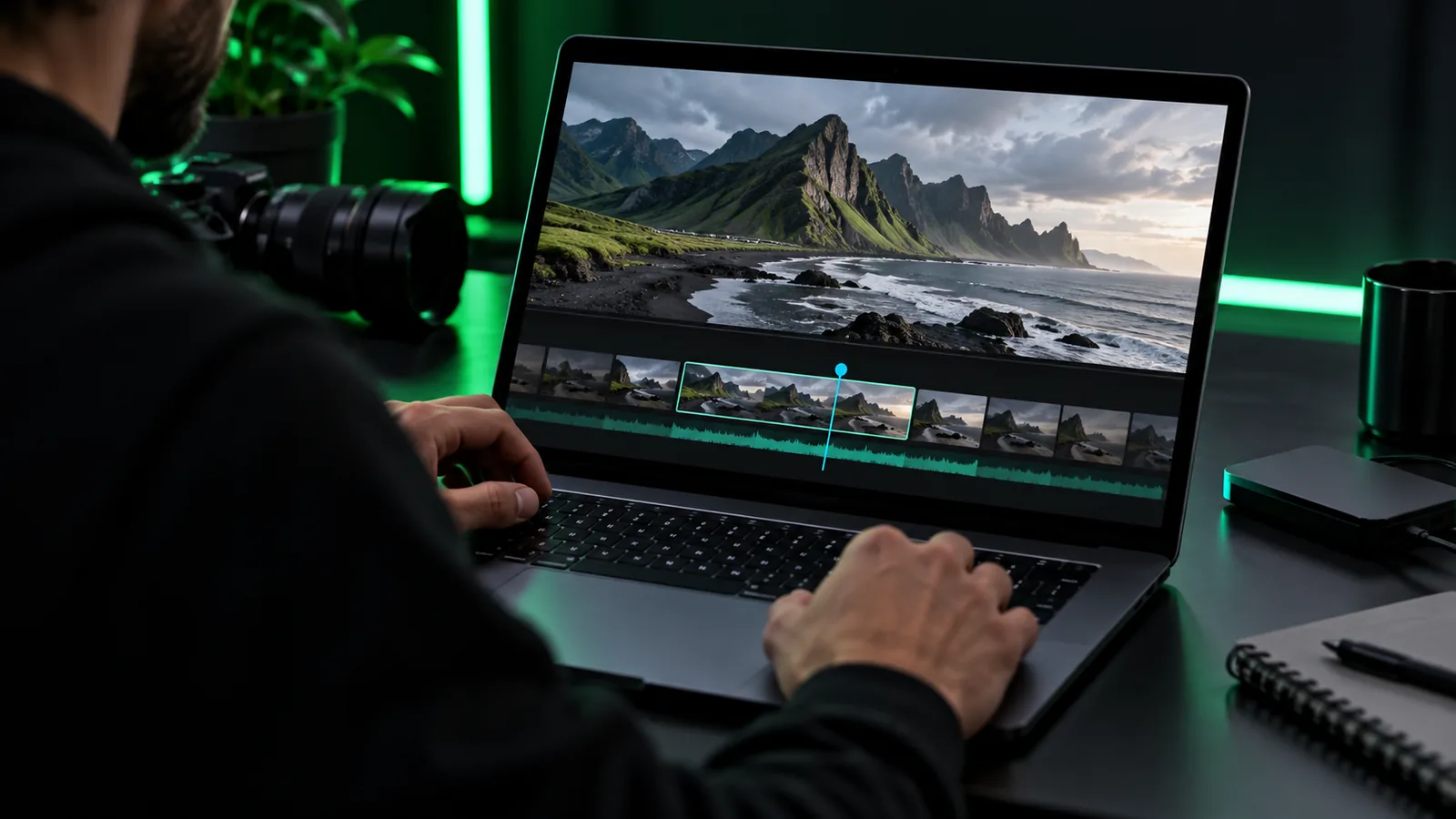
Desktop workflow

Plan your next project with an online video editor for pc

An online video editor for pc gives you a browser-based starting point for video work on a desktop or laptop. Before choosing a tool, decide whether you need to edit existing footage or create a new video from an idea.

Describe your video

Open Vidione, then enter your brief there. This page does not transfer prompt text.

Review available options after opening Create a video
Onlinevideo desktop video workspace

The desktop choice in one view

A browser tool and an installed editor solve different problems. Compare the work you actually need to do, rather than assuming either approach fits every project.

Browser-based tool Installed PC editor
Getting started Open a website in a supported browser; access requirements depend on the tool. Download, install, and maintain an application.
Internet access Usually needed to open the tool and process or save work. May support offline editing, depending on the application.
Existing footage Check upload support, file limits, and available editing controls. Work with local files using the application's supported formats.
New video creation Some services accept a written brief or other starting material. Capabilities vary; many focus on assembling footage.
Large projects Uploads and browser resources may become constraints. Performance depends on the PC, storage, and software.
Export Confirm resolution, format, branding, and access terms before starting. Check the application's export settings and license terms.

Four ways to match the tool to the job

The useful mechanism is simple: identify your source material, choose the kind of changes you need, then verify the finished file. These starting points cover common PC projects.

Desktop content creator

You have a topic but no recorded footage and want to draft a short video from a written brief.

Write the audience, length, key points, and closing message first. An online video editor can then be evaluated against the kind of video you need.

video maker online free

YouTube creator

You are preparing a video that must work for a specific channel and viewing format.

Set the intended orientation and review the opening, pacing, and export before publishing. The online video editor for youtube guide covers that channel-focused decision.

online video editor for youtube

First-time editor

You have clips on your PC but have not decided how to organize them.

Make a short cut list and identify the essential scenes before exploring controls. Follow a free online video editor tutorial for a more structured practice run.

free online video editor tutorial

Mobile-first teammate

Someone else needs to review or finish the project on a phone.

Check mobile access and exported-file conditions separately from the PC workflow. The free online video editor no watermark mobile guide explains which claims to verify.

free online video editor no watermark mobile

Move from brief to finished review

These steps work whether your online video editor starts with a prompt, uploaded clips, or both; use only the inputs and controls the selected service actually offers.

  1. 1

    Define the result

    On your PC, write one sentence describing the audience and purpose. Add the desired length, aspect ratio, and a short outline. This keeps the project focused before you spend time selecting footage or drafting a video brief.

  2. 2

    Prepare and begin

    Gather clips, images, and audio you have permission to use, or write a specific creation prompt. Open the tool and check which input method it supports. Keep original files in a separate folder so you can revise without losing them.

  3. 3

    Review before export

    Watch the full result on your desktop, including the opening and final seconds. Check readable text, audio levels, framing, and factual accuracy. Then inspect the available export settings and any access or branding conditions before committing to the output.

Requirements and limits worth checking

A PC browser does not remove every constraint. Treat the items marked required as preparation for a responsible project; optional items depend on your source material and goal.

Required Optional
  • A PC with a current browser and a reliable connection for a browser-based workflow. — Browser support and connection needs vary by service.

  • A clear project brief: audience, purpose, approximate length, and intended destination. — This helps you assess the result even if the tool uses a different editing workflow.

  • Permission to use any footage, images, music, logos, or voices you provide. — Tool access does not grant rights to third-party material.

  • Enough local space to retain source files and save any downloadable output. — File size depends on the footage and export settings.

  • Headphones for checking dialogue, music balance, and unwanted noise.optional

  • A short shot list or script for projects with multiple scenes.optional

Where desktop workflows meet their edges

Use the relevant panel as a final check. Available inputs, controls, and export terms belong to the individual service, not to every online video editor.

Existing clips

Check the upload path

If your project begins with files on your PC, verify supported file types and upload limits before arranging an entire shoot around one service. Long recordings can also take time to transfer over a slow connection.

  • Keep your original clips outside the browser.
  • Test one representative file before preparing the rest.
  • Confirm that the available controls cover the edits you need.

Written brief

Check what the output actually says

A brief can speed up a first draft, but the result still needs human review. An online video editor may interpret a broad request differently from what you intended, especially when names, product details, or precise visuals matter.

  • Specify the audience and the main message.
  • Verify on-screen text and factual statements.
  • Revise the brief if the first result misses the goal.

Export

Check the deliverable, not just the preview

Before relying on a PC workflow, inspect the available download or sharing options. Preview quality, final resolution, branding, format, and usage terms can differ by service or access level.

  • Confirm the destination's size and orientation requirements.
  • Watch the exported file from beginning to end.
  • Keep a copy of the brief and source assets for revisions.

Start with a specific video idea

Describe the video you want to make, then review the options available in the opened tool. A focused brief makes it easier to judge whether the result suits your audience and where it needs revision.

Put your desktop brief to work

  • State the audience and purpose.
  • Include the key message and intended length.
  • Review the result before sharing.
Create a video

PC editing questions

Yes, browser-based video tools can be accessed from a PC when its browser meets the service's requirements. Check the specific tool's supported inputs and workflow before assuming it can edit existing clips or create a video from a brief.

A browser-based workflow generally does not require installing a traditional desktop editor. You may still need a supported browser, an internet connection, and whatever access the chosen service requires.

Neither is better for every project. A browser tool may suit a shorter, connected workflow, while installed software may be preferable when offline access or extensive work with local footage is important.

Some online editors accept uploaded footage, but input types and file limits vary. Check the selected service before preparing a project that depends on large recordings or a particular format.

Confirm the final format, resolution, orientation, branding, and any applicable access terms. Download or share a test result if available, then watch the finished file rather than relying only on its preview.

Start creating
Start creating