
Video editing basics

What is online video editor, and when is it useful?

An online video editor is a tool you access through a browser to assemble or change a video. This guide explains the workflow, its practical limits, and the questions to ask before you start.

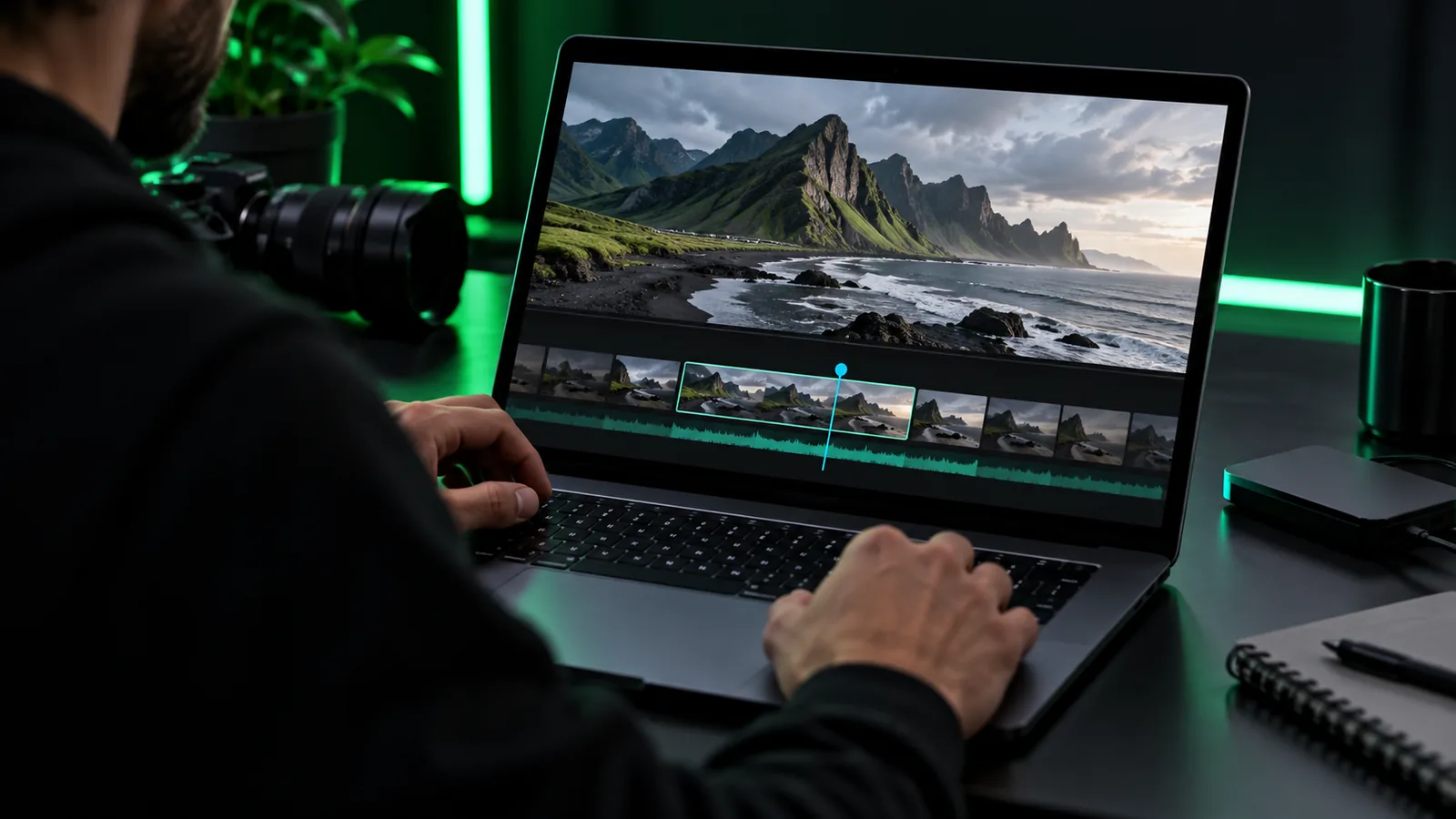
Onlinevideo visual showing a video creation workspace

How it works

The basic sequence is familiar even if you have never edited a video. What changes between services is how much control you have at each stage.

  1. 1

    Bring in material

    Start with footage, photos, audio, or an idea, depending on what the service accepts. Check supported inputs before committing to a project.

  2. 2

    Arrange and revise

    Place clips in order, remove unwanted moments, and add elements such as text or sound where available. Preview the result and check transitions and pacing.

  3. 3

    Review the output

    Inspect the whole video before exporting. Confirm the available resolution, format, branding, and any access conditions on the service you chose.

Can / cannot do

An online video editor can simplify common changes, but browser access alone says little about the depth of its tools. Judge capabilities by the actual project you need to finish.

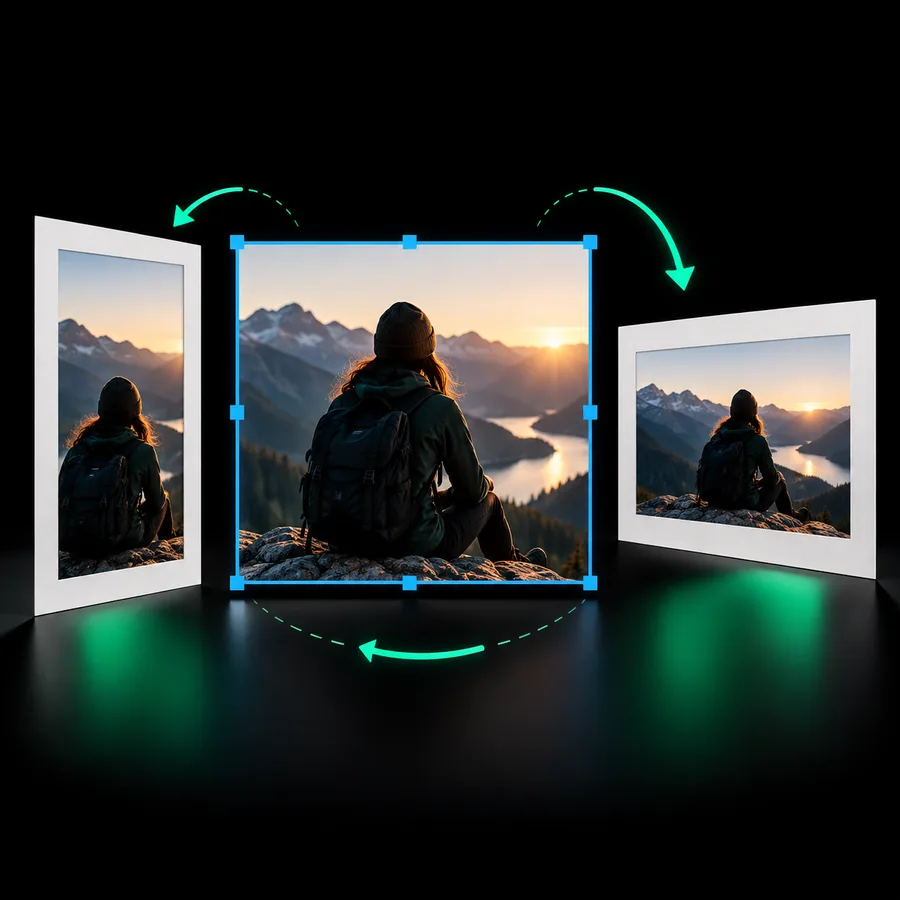
Onlinevideo feature visual for arranging a video sequence

Step 1

Make a short sequence easier to follow

For a simple update or social clip, the useful work is often selecting the strongest moments, putting them in a clear order, and checking that the message survives without extra footage. An online video editor with suitable trimming and arrangement tools can support that process. It cannot decide which moment matters most to your audience.

  • Check whether your source files are accepted.
  • Preview pacing before you export.
Onlinevideo feature visual for adding context to a video

Step 2

Add context without losing clarity

Titles, captions, imagery, and sound can make a video easier to understand when a particular editor provides those options. An online video editor does not automatically verify a claim, clear music rights, or ensure that text remains readable on every screen. Review those details yourself, especially when the video represents a person or organization.

  • Read titles at the intended viewing size.
  • Use media you have permission to include.

Who uses it

The right choice depends less on job title than on the size of the edit and the level of control required.

or

Option 1

You need a concise update or announcement

Consider an online video editor that supports your inputs and intended export.

A straightforward sequence may not require an elaborate editing setup, but you still need to check the finished file.

or

Option 2

You are preparing recurring social posts

Look for a repeatable workflow and preview the result at the size your audience will see.

Consistent framing and readable text matter more than a long list of effects.

or

Option 3

You need detailed sound, color, or long-form control

Compare the browser option with a dedicated desktop editor before starting.

Complex projects can depend on controls, performance, and file handling that differ substantially between tools.

Limits to plan around

The definition of an online video editor does not promise that any particular service meets every production need.

1

No universal feature set

Two browser-based editors may differ in their accepted media, editing controls, and export options.

What to do instead

List your required inputs and final format, then check them against the specific service.

2

No automatic rights clearance

Editing footage or adding music does not give you permission to publish material owned by someone else.

What to do instead

Use material you created or have the appropriate rights to use.

3

No guaranteed access conditions

Browser-based does not mean free, unrestricted, or available without an account.

What to do instead

Read the current access and export terms before investing time in a project.

Explore your next video workflow

Now that you know what an online video editor is, start with your source material, the changes you need, and the output you expect. Explore Onlinevideo’s destination and verify its current capabilities and terms against that checklist.

Choose the tool around the video

  • Check accepted inputs
  • Review editing options
  • Confirm export conditions
Explore video tools

FAQ

No. Online describes how you access the editor, while free describes an access or payment condition. A service may offer a free option, but you should check what that option actually includes.

Start with the files you can bring in and the video you can export. Then check whether the features you need, the output quality, and any branding conditions apply to the free option.

That depends on the service and its current terms. Before editing, confirm whether export is available under its free option and whether limits apply to the resulting file.

It can be enough for a modest project if its available controls and export meet your needs. For demanding audio, color, or long-form work, compare its actual capabilities with another editing approach before you begin.

Start creating
Start creating