Photo video guide

Plan your story with an online video maker with photos

Start with the pictures you want viewers to remember, then decide their order, pacing, captions, and soundtrack. Onlinevideo helps you think through the edit before you hand your idea to a video tool.

Describe your sequence

Open Vidione, then enter your brief there. This page does not transfer prompt text.

Check available options after opening Make a photo video
Onlinevideo landing illustration for planning a video

A/B structural difference table

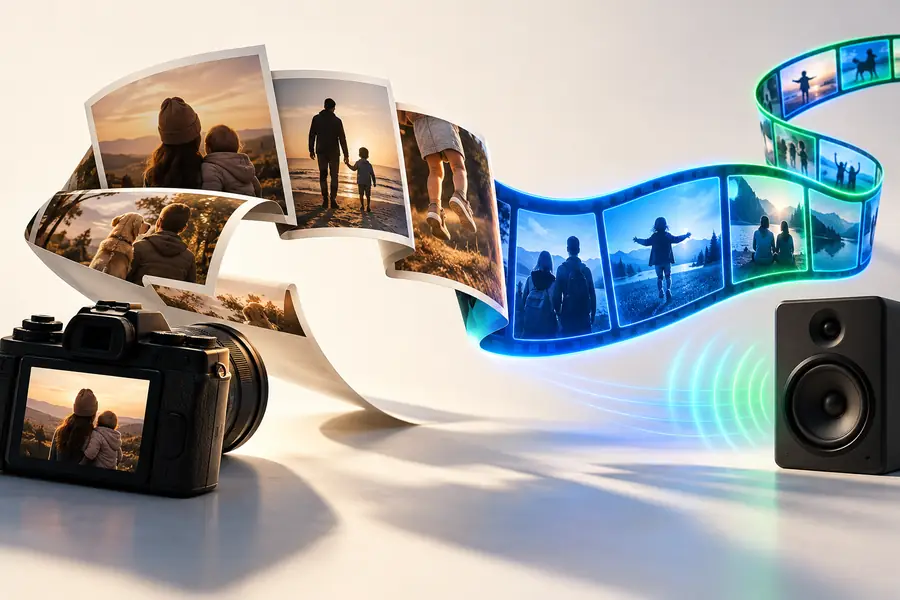
A photo holds one moment; a video places moments in an order. Use the divider as an illustrative comparison of those two ways to present a story, not as a verified edit of the same source image.

Illustration representing a photo-led video idea Onlinevideo example image representing a possible video presentation

Photo concept

The images illustrate a planning distinction; they do not document an actual before-and-after conversion.

Video concept

What conversion loses

Motion and music can make a collection easier to watch, but they also decide how long each picture stays on screen. Plan for viewers who may want more time with a particular image.

Family archivist

A group portrait flashes by before relatives can identify everyone.

Hold important portraits longer and keep names in captions. For a music-first approach, compare a photo video maker with music online free, then check its actual audio and export terms.

photo video maker with music online free

Small business owner

A product detail becomes hard to inspect once the presentation moves on.

Pair the video with the original product photos so customers can pause and examine details. A video maker online free is another starting point for comparing assembly workflows.

video maker online free

Travel storyteller

Quick cuts flatten the difference between a landmark and a passing snapshot.

Group photos by place, put key locations first, and leave room for readable captions. Bring that sequence to the video tool when you are ready to test it.

Try a photo sequence

The tool block

Before opening an online video maker with photos, decide what the finished sequence must retain. This comparison separates information in your source images from choices made for the video.

Source photos Planned video
Order Images can be viewed in any order. Choose a beginning, middle, and end.
Viewing time A viewer can study each image. Assign enough screen time for important details.
Sound Usually silent unless shared separately. Plan music only if you have permission to use it.
Text Descriptions may live outside the image. Keep names and locations brief and readable.
Framing Original proportions remain visible. Check whether the chosen frame crops faces or products.
Detail The original image remains available. Inspect the exported video rather than assuming details survive.
Revisions Individual photos can be replaced. Keep the originals so you can revise the sequence.

How to verify after

Open the result at its intended viewing size. Pause on captions, check the first and last photo, listen for abrupt music changes, and look for unwanted crops. If a portrait needs more time or a location label is hard to read, revise the plan and check the next result again. Keep your source photos until you are satisfied with the version you share.

Watch the whole sequence before sharing

  • Check photo order and screen time
  • Inspect crops and caption readability
  • Confirm you can use the selected music
Make a photo video

Variant FAQ

Select the photos that tell one story, arrange them in a deliberate order, and decide how long each should appear. Describe the sequence you want, then check the available creation options and review the result before sharing.

Music is part of the plan, but the controls available depend on the tool you open. Use audio you have permission to include, and listen to the finished video to make sure the soundtrack supports rather than overwhelms the images.

The result may crop, resize, or compress the source images. Compare the finished video with your originals, especially around faces, small text, and fine product details.

Chronological order works well for trips and events; a problem-to-result sequence may suit a project or product. Start with an image that establishes the subject, then remove near-duplicates that slow the story.

A finished video is not a substitute for the source images. Keep the originals and share them separately when viewers need to zoom in, inspect a detail, or save an individual picture.

Start creating
Start creating